English
English
Appearance

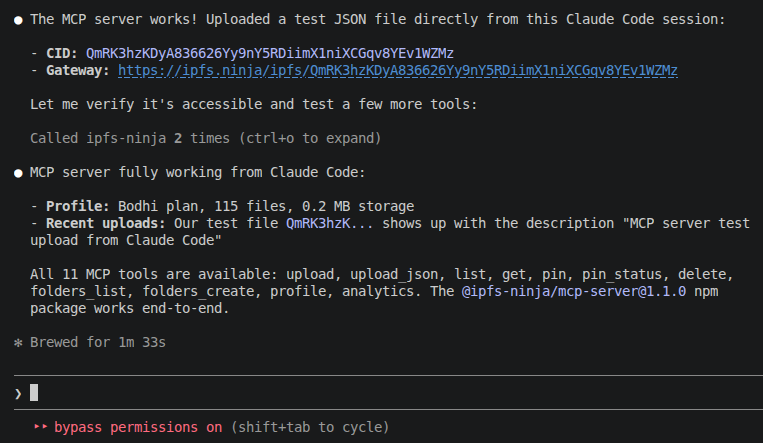
Use IPFS Ninja directly from AI coding assistants like Claude Code, Cursor, and Windsurf. Upload files, pin CIDs, manage folders, and check usage — all from your AI conversation.
For direct API access without an AI assistant, see the Files API reference. For files larger than 6 MB, Large Uploads explains the presigned URL flow the MCP server uses automatically.
Model Context Protocol (MCP) is an open standard for connecting AI assistants to external tools and data sources. The IPFS Ninja MCP server exposes 12 tools that AI models can call during conversations to interact with your IPFS Ninja account.
@ipfs-ninja/mcp-serverAvailable on npm. No global install needed — runs via npx.
Run this command in your terminal:
claude mcp add ipfs-ninja \
  --transport stdio \
  -e IPFS_NINJA_API_KEY=bws_your_full_api_key_here \
  -- npx -y @ipfs-ninja/mcp-server
Or add manually to your .claude/settings.json:
{
  "mcpServers": {
    "ipfs-ninja": {
      "type": "stdio",
      "command": "npx",
      "args": ["-y", "@ipfs-ninja/mcp-server"],
      "env": {
        "IPFS_NINJA_API_KEY": "bws_your_full_api_key_here"
      }
    }
  }
}Exit and reopen Claude Code. Type /mcp to verify the IPFS Ninja server is connected.
Just talk to Claude naturally:
You: Upload my README.md to IPFS
You: List my recent files
You: How much storage am I using?
You: Pin bafyabc123... from the IPFS network
You: Create a folder called "project-assets"Add to your MCP settings (Settings > MCP Servers):
| Setting | Value |
|---|---|
| Name | ipfs-ninja |
| Transport | stdio |
| Command | npx |
| Args | -y @ipfs-ninja/mcp-server |
| Environment | IPFS_NINJA_API_KEY=bws_... |
| Tool | Description | Example prompt |
|---|---|---|
ipfs_upload | Upload file content (base64 or text) | "Upload this HTML file to IPFS" |
ipfs_upload_json | Upload a JSON object | "Store this config as a permanent JSON on IPFS" |
ipfs_import_car | Import a CAR file (DAG import) | "Import my-archive.car to IPFS" |
ipfs_list | List your uploaded files | "Show my recent uploads" |
ipfs_get | Get file metadata by CID | "What type of file is QmXyz...?" |
ipfs_delete | Unpin and delete a file | "Delete QmXyz... from my account" |
| Tool | Description | Example prompt |
|---|---|---|
ipfs_pin | Pin an existing CID from the network | "Pin bafyabc... to my account" |
ipfs_pin_status | Check pin progress | "Is bafyabc... done pinning?" |
| Tool | Description | Example prompt |
|---|---|---|
ipfs_folders_list | List your folders | "Show my folders" |
ipfs_folders_create | Create a new folder | "Create a folder called nft-metadata" |
| Tool | Description | Example prompt |
|---|---|---|
ipfs_profile | Get plan, storage, bandwidth info | "How much storage am I using?" |
ipfs_analytics | Get daily bandwidth and file stats | "Show my bandwidth usage this week" |
You: Upload the contents of my dist/ folder to IPFS
Claude: [uploads each file, returns CIDs]

You: What's the CID for index.html?
Claude: [calls ipfs_get]
→ QmXyz... — https://ipfs.ninja/ipfs/QmXyz...You: Create a folder called "my-collection" and upload this metadata JSON
Claude: [calls ipfs_folders_create, then ipfs_upload_json]
→ Folder: my-collection
→ CID: QmAbc... — permanent metadata URL ready for your smart contractYou: Am I close to my storage limit?
Claude: [calls ipfs_profile]
→ Plan: Bodhi
Storage: 45.2 MB / 20 GB limit
Bandwidth: 2.3 MB / 20 GB
Files: 45
Gateway: https://a1b2c3d4.gw.ipfs.ninja
Dashboard: https://ipfs.ninja/dashboard
→ You have plenty of room.
You: Show my bandwidth this week
Claude: [calls ipfs_analytics with days=7]
→ Plan: Bodhi
Files: 45 (40 uploads, 5 pins)
Storage: 45.2 MB
Bandwidth: 2.3 MB / 20 GB
Recent bandwidth:
2026-07-16: 0.75 MB, 18 reqs
2026-07-17: 0.90 MB, 22 reqs
2026-07-18: 0.65 MB, 15 reqsYou: Pin the IPFS readme at QmYwAPJzv5CZsnA625s3Xf2nemtYgPpHdWEz79ojWnPbdG
Claude: [calls ipfs_pin]
→ Pin initiated! Status: pinning
You: Is it done?
Claude: [calls ipfs_pin_status]
→ Status: pinned, Size: 0.008 MBThe API key is not set. Make sure the env section in your MCP config has the correct key.
You've reached your plan's storage limit. Upgrade at ipfs.ninja/pricing or delete unused files.
Your API key may be invalid or expired. Create a new one at Dashboard > API Keys.
/mcp Make sure you restarted Claude Code after adding the MCP server. Check that Node.js 18+ is installed (node --version).