

IPFS Garbage Collection: Stop Files Disappearing
Understand why IPFS nodes delete unpinned content, how garbage collection works, and how to ensure your files stay available permanently.
 by Nacho Coll
Nacho founded IPFS.NINJA to make content-addressed storage feel as simple as an S3 PUT — a single API call, a permanent CID, no wallets or peer discovery to reason about.
- Pin a CID immediately to stop IPFS garbage collection from deleting it — a pinned file is never swept.
- Files vanish when a node caches but never pins content — garbage collection reclaims that disk space.
- Adding a file to your own node only pins it locally; nobody else is obligated to keep serving it.
- A remote pinning service replaces casual-node caching with a permanent, always-on guarantee.
IPFS garbage collection is the routine that deletes any block your node has not explicitly pinned, freeing disk space when the datastore fills. Your file disappears because uploading a CID caches the bytes but does not pin them — the next collection cycle sweeps every unpinned block, and the CID resolves to nothing.
Last verified: 2026-08-27
Looking for the official IPFS persistence, pinning, and garbage collection docs? The canonical reference lives at docs.ipfs.tech/concepts/persistence. This article is a practical how-to focused on preventing data loss — with runnable code you can use right now.
You uploaded a file to IPFS, shared the CID with someone, and a week later they get a 404. Sound familiar? You’re not alone. “My IPFS file disappeared” is one of the most common frustrations in the ecosystem — and the cause is almost always the same thing: garbage collection.
Here’s how to diagnose it and fix it in under five minutes.
Quick Fix: Pin Your File Before It Disappears#
A pin is the flag that removes a CID from garbage-collection eligibility — pin it once and no sweep touches it again. If your file is at risk, send the CID to a remote pinning service before the host node next runs GC. With IPFS Ninja the request is a single POST:
# Replace with your actual API key and CID
curl -X POST https://api.ipfs.ninja/pin \
  -H "Content-Type: application/json" \
  -H "X-Api-Key: bws_a1b2c3d4e5f6a1b2c3d4e5f6a1b2c3d4" \
  -d '{
    "cid": "bafybeigdyrzt5sfp7udm7hu76uh7y26nf3efuylqabf3oclgtqy55fbzdi",
    "description": "My important file — keep forever"
  }'
Response:
{
  "cid": "bafybeigdyrzt5sfp7udm7hu76uh7y26nf3efuylqabf3oclgtqy55fbzdi",
  "status": "pinned"
}
That’s it. A pinned CID will never be garbage collected by IPFS Ninja’s infrastructure, regardless of how often (or rarely) it is accessed.
What Is IPFS Garbage Collection?#
IPFS garbage collection is the datastore-cleanup routine every node runs to reclaim disk by deleting blocks nobody has pinned. Per the official IPFS persistence documentation, only pinned CIDs and their referenced blocks survive; every other cached block is a candidate for the next sweep. The pin record is the sole thing keeping your file addressable long-term.
Every IPFS node has a local block store — a disk cache of content-addressed chunks it has fetched or produced. When that disk fills up, the node runs a garbage collector that deletes any block not explicitly marked as “keep.” The mark that says “keep” is called a pin.
Think of it like a browser cache:
| Concept | Browser analogy | IPFS equivalent |
|---|---|---|
| Cached data | Webpage assets stored locally | Blocks in the local datastore |
| Cache eviction | Browser deletes old cached files | GC deletes unpinned blocks |
| Bookmarks | Saved URLs that survive cache clears | Pins |
| Private bookmark server | Cloud bookmark sync | Remote pinning service |
When you add a file to your own IPFS node, it is automatically pinned — locally. When another node fetches your file because someone requested it, that node caches the blocks but does not pin them by default. The next time GC runs on that node, those blocks are gone.
This is intentional and correct behavior. IPFS nodes are not expected to store everyone’s data forever. That’s the job of a pinning service.
The Three Ways Files “Disappear”#
Three distinct failure modes look identical from the outside — the CID returns 404 — but each has a different root cause and a different fix. Your file may have been swept by your own node, stranded on an offline peer, or evicted by a public gateway that never promised to keep it. Diagnose which one hit you first, then apply the matching remedy.
1. Your local node ran GC#
If you added the file from your own machine and then restarted the IPFS daemon with --enable-gc, or ran ipfs repo gc manually, any file you didn’t explicitly pin is gone from your local store.
# This is how to check what's pinned on a local node
ipfs pin ls --type=recursive
If your CID isn’t in that list, it was never pinned locally.
2. The only node serving your file went offline#
IPFS is not a storage network — it’s a content routing network. If you were the only node with a given CID and you shut your machine down, no one else can retrieve it. The file didn’t get “deleted,” but it’s unreachable, which is functionally the same.
3. A public gateway cached it but then evicted it#
Public gateways like ipfs.io or dweb.link act as caches. They fetch and serve content on demand but make zero persistence guarantees. High-traffic CIDs stick around; obscure ones are evicted quickly. Never rely on a public gateway as your storage layer.
Pins vs. Cache: The Key Mental Model#
Without pinning:
  Add file → Local datastore → GC runs → Gone
With local pin:
  Add file → Local datastore + Pin record → GC runs → Survives
  (But: node goes offline → Unreachable)
With remote pin (pinning service):
  Add file → Remote node + Pin record → GC runs → Survives
  Node goes offline → Still reachable via pinning service
A remote pinning service is the correct solution for any file you need to be reliably accessible. Your laptop is not a server.
How to Prevent Data Loss: Remote Pinning#
Option A: Upload directly to a pinning service#
The safest approach is to never rely on a local node at all. Upload directly via the API:
curl -X POST https://api.ipfs.ninja/upload/new \
  -H "Content-Type: application/json" \
  -H "X-Api-Key: bws_a1b2c3d4e5f6a1b2c3d4e5f6a1b2c3d4" \
  -d '{
    "content": "Hello, permanent web.",
    "description": "Test file — will not disappear"
  }'
{
"cid": "bafkreihdwdcefgh4dqkjv67uzcmw7ojee6xedzdetojuzjevtenxquvyku",
"sizeMB": 0.000023,
"uris": {
"ipfs": "ipfs://bafkreihdwdcefgh4dqkjv67uzcmw7ojee6xedzdetojuzjevtenxquvyku",
"url": "https://ipfs.ninja/ipfs/bafkreihdwdcefgh4dqkjv67uzcmw7ojee6xedzdetojuzjevtenxquvyku"
}
}Files uploaded this way are pinned immediately and never subject to garbage collection.
Option B: Upload binary files (base64)#
# Encode a file and upload it
B64=$(base64 -w 0 ./my-image.png)
curl -X POST https://api.ipfs.ninja/upload/new \
  -H "Content-Type: application/json" \
  -H "X-Api-Key: bws_a1b2c3d4e5f6a1b2c3d4e5f6a1b2c3d4" \
  -d "{
    \"content\": \"$B64\",
    \"description\": \"my-image.png\",
    \"metadata\": { \"filename\": \"my-image.png\", \"encoding\": \"base64\" }
  }"
Option C: Pin an existing CID from another source#
Already have a CID from another node or service? Pin it to ensure availability:
curl -X POST https://api.ipfs.ninja/pin \
  -H "Content-Type: application/json" \
  -H "X-Api-Key: bws_a1b2c3d4e5f6a1b2c3d4e5f6a1b2c3d4" \
  -d '{
    "cid": "QmYwAPJzv5CZsnA625s3Xf2nemtYgPpHdWEz79ojWnPbdG",
    "description": "Pinned from external source"
  }'
See our full upload tutorial for more on working with binary data, metadata, and large files.
Choosing a Pinning Service#
Not all pinning services are equal. Here’s a quick comparison to help you choose:
| Service | Entry pricing | Trial / free | Storage limit |
|---|---|---|---|
| IPFS Ninja | Bodhi $5/mo (unlimited files, 10 GB) | 7-day trial (200 files, 10 GB), no card | 1 TB (Nirvana $59/mo) |
| Pinata | $20/mo | 1 GB free | Varies |
| Filebase | Pay-per-use | 5 GB trial | Unlimited |
| web3.storage | Closed / migrating | — | — |
IPFS Ninja’s 7-day trial gives you 10 GB / 200 files / 20 GB bandwidth / 1 dedicated gateway (trial file cap — Bodhi lifts to unlimited) with no credit card required — enough to build and validate a production app end to end. On day 8, pick Bodhi ($5/mo), Karma ($19/mo), or Nirvana ($59/mo). See our full comparison guide for a deeper breakdown, or read IPFS Ninja vs Pinata if you’re evaluating those two specifically.
For a deeper look at what pinning actually means at the protocol level, see What Is IPFS Pinning.
Diagnosing “File Not Found” Errors#
Use this checklist when a CID stops resolving:
Step 1 — Check if it’s pinned anywhere
# Try fetching via a public gateway
curl -I "https://ipfs.io/ipfs/YOUR_CID_HERE"
# HTTP 200 = still cached somewhere
# HTTP 504 = no node is serving it
Step 2 — Check your pinning service dashboard
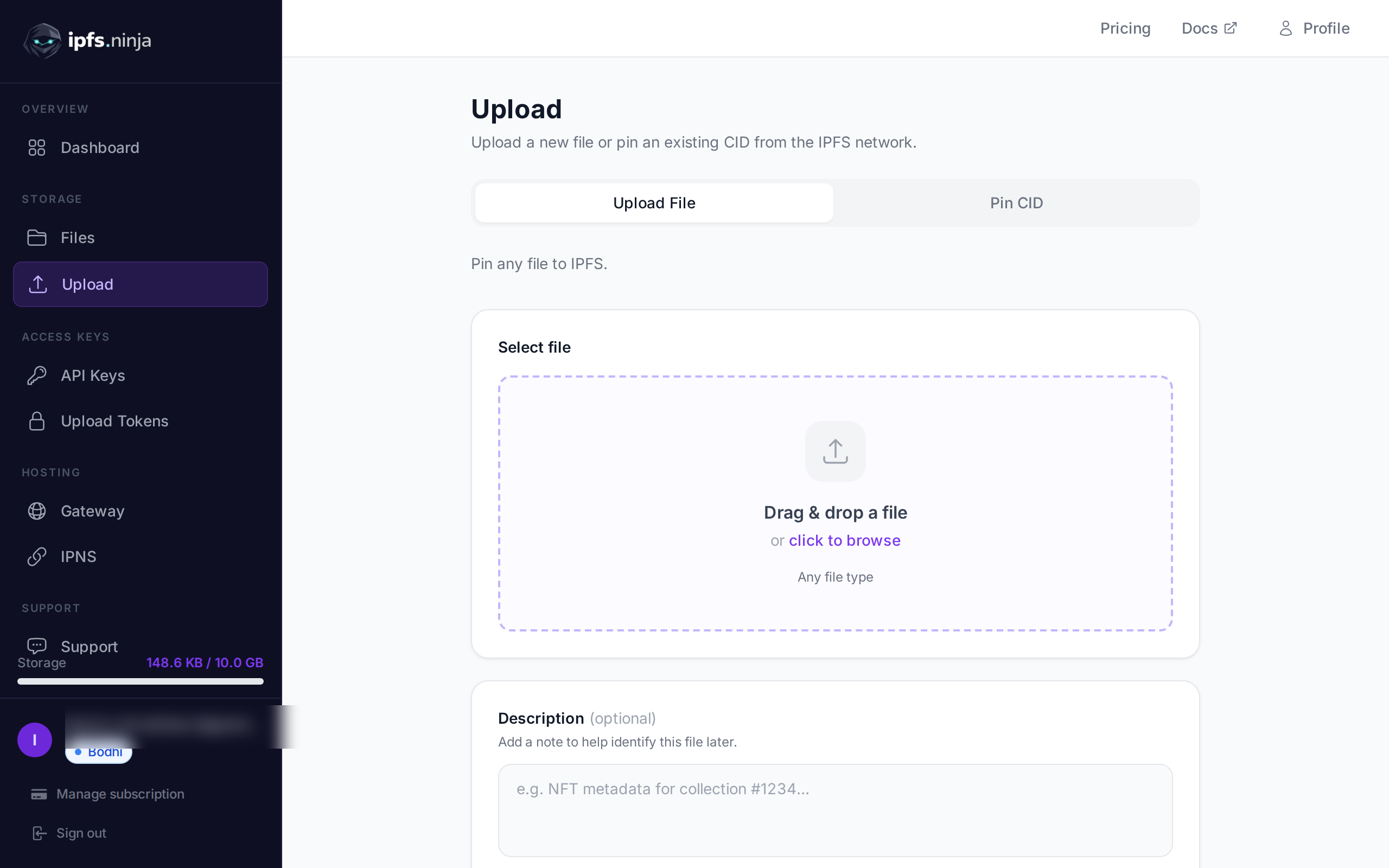
Log into ipfs.ninja → Files. If the CID isn’t listed, it was never pinned with this service.
Step 3 — Check your local node
ipfs pin ls --type=recursive | grep YOUR_CID_HEREEmpty output means it was either never pinned locally or GC already ran.
Step 4 — Re-upload if the content still exists
If you still have the original file locally, re-upload it. The CID will be identical (that’s the beauty of content addressing), and it will be pinned permanently this time.
# If you have the original file, re-upload it
# The CID produced will be the same as before
curl -X POST https://api.ipfs.ninja/upload/new \
  -H "Content-Type: application/json" \
  -H "X-Api-Key: bws_a1b2c3d4e5f6a1b2c3d4e5f6a1b2c3d4" \
-d "{\"content\": \"$(base64 -w 0 ./original-file.txt)\"}"Summary#
| Scenario | Will GC delete it? | Solution |
|---|---|---|
| Added to local node, not pinned | Yes | Pin locally or use remote service |
| Added to local node, pinned | No (locally) | Still need remote pin for availability |
| Fetched by a remote node (cached) | Yes | Use a pinning service |
| Pinned with a remote pinning service | Never | You’re good |
| Uploaded via IPFS Ninja API | Never | You’re good |
Garbage collection is not a bug — it’s IPFS working as designed. The fix is always the same: pin your content with a service that guarantees persistence.
Ready to start pinning? Start your 7-day trial — 10 GB / 200 files / 20 GB bandwidth / 1 dedicated gateway (trial file cap — Bodhi lifts to unlimited). No credit card required. Then Bodhi $5/mo, Karma $19/mo, or Nirvana $59/mo.
About the author
Nacho Coll
Founder & Engineer at IPFS.NINJA
Nacho founded IPFS.NINJA to make content-addressed storage feel as simple as an S3 PUT — a single API call, a permanent CID, no wallets or peer discovery to reason about. Writes about IPFS internals, decentralized storage patterns, and the pinning-service landscape from the operator side of the wire.