

IPFS + React: Build a Decentralized File Upload Component
Build a React drag-and-drop file upload component that pins files to IPFS. Complete tutorial with signed tokens for secure browser uploads.
 by Nacho Coll
Nacho founded IPFS.NINJA to make content-addressed storage feel as simple as an S3 PUT — a single API call, a permanent CID, no wallets or peer discovery to reason about.
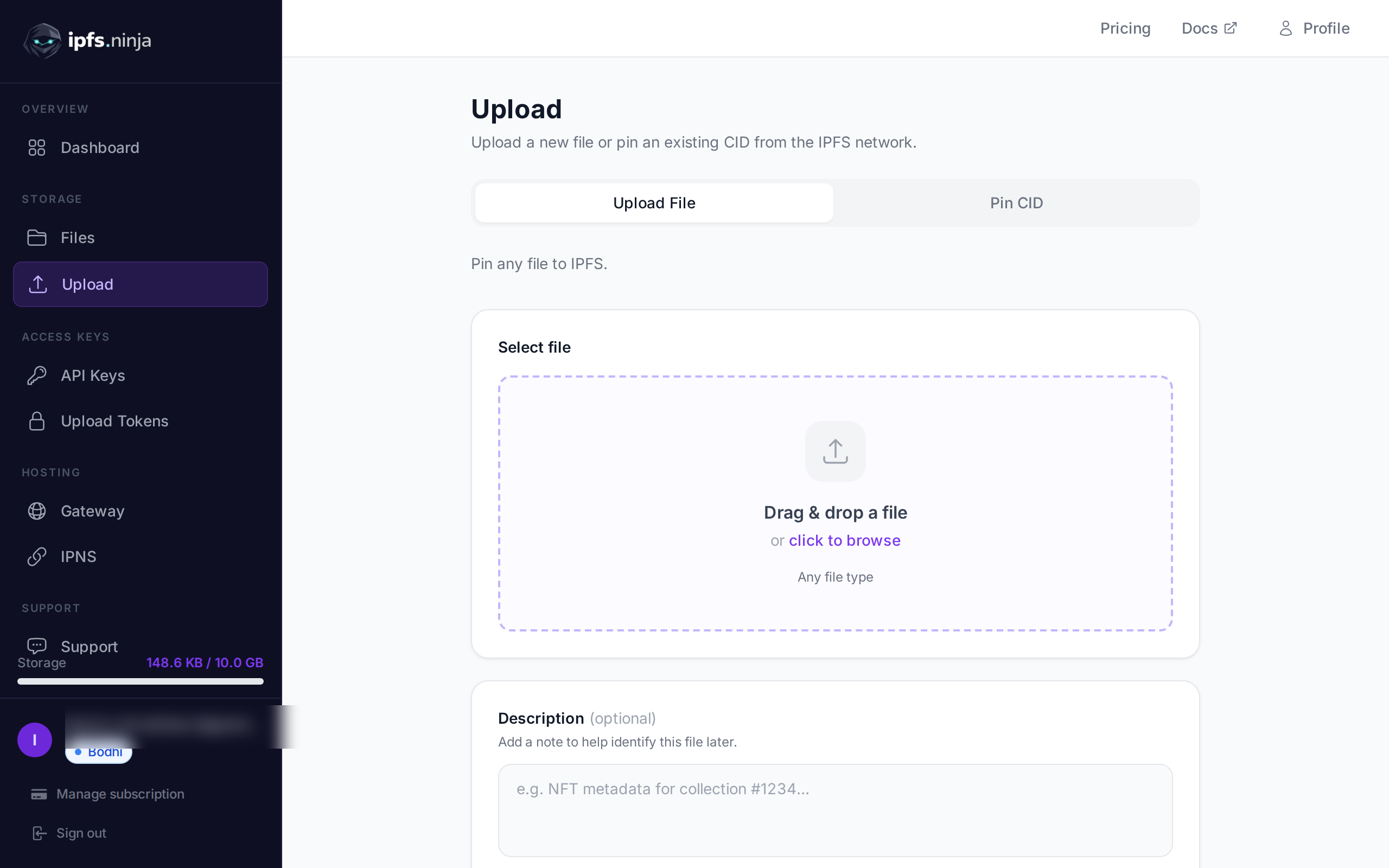
- Build a React drag-and-drop component that pins files to IPFS directly from the browser.
- Use signed upload tokens instead of API keys so client-side uploads never expose your credentials.
- Manage upload progress and retries with TanStack Query for a production-ready upload flow.
- Every uploaded file gets an immutable CID, so the link never breaks once content is pinned.
Building decentralized applications with React and IPFS has never been more straightforward. In this comprehensive tutorial, you’ll learn how to create a production-ready file upload component that pins files directly to IPFS from the browser. We’ll use IPFS.NINJA’s signed tokens to ensure secure uploads without exposing API keys in your frontend code.
By the end of this guide, you’ll have a fully functional drag-and-drop component with upload progress, error handling, and proper state management using TanStack Query.
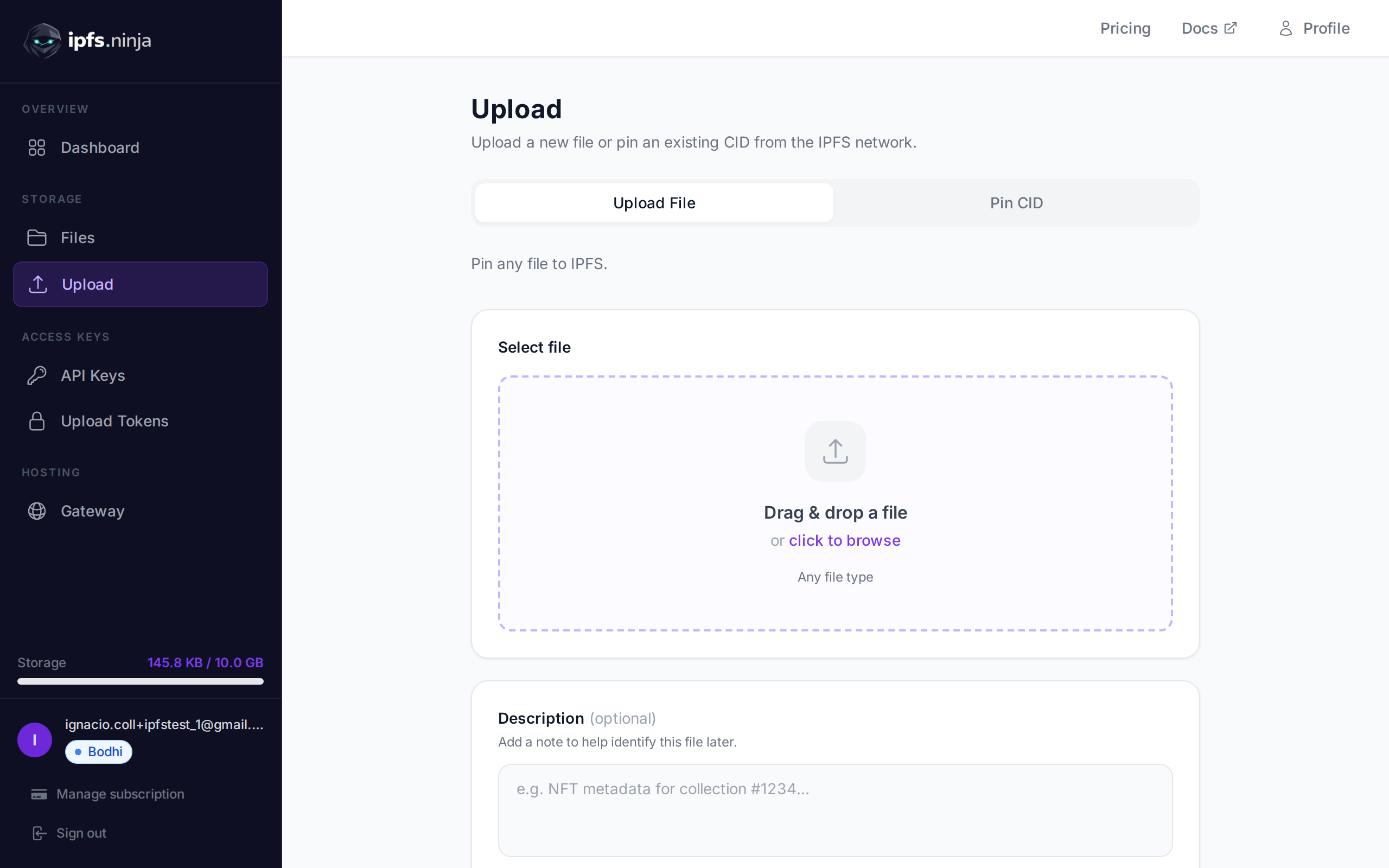
Step 1: Install Dependencies and Bootstrap Your React App#
Traditional cloud storage services like AWS S3 centralize your data and create vendor lock-in. With IPFS (InterPlanetary File System), your files are distributed across a peer-to-peer network, making them more resilient and censorship-resistant.
Key benefits of this approach:
- Decentralized storage: Files are distributed across multiple nodes
- Content addressing: Each file gets a unique CID (Content Identifier)
- Immutable links: Once uploaded, files can’t be modified without changing the CID
- Global accessibility: Files are accessible from any IPFS gateway
- Secure uploads: Use signed tokens instead of exposing API keys
If you’re new to IPFS concepts, check out our guide on what is IPFS pinning before diving into the code.
Prerequisites#
Before we start, make sure you have:
- Basic React knowledge
- Node.js 16+ installed
- An IPFS.NINJA account (sign up here)
- Understanding of modern React patterns (hooks, async/await)
Setting Up the Project#
First, let’s create a new React project and install the required dependencies:
npx create-react-app ipfs-upload-demo
cd ipfs-upload-demo
npm install @tanstack/react-query react-dropzone lucide-react
We’ll use these libraries:
- @tanstack/react-query: For state management and caching
- react-dropzone: For drag-and-drop functionality
- lucide-react: For icons
Understanding Signed Tokens#
Before building the component, it’s crucial to understand why we use signed tokens instead of API keys:
// Never do this - exposes your API key
const response = await fetch('https://api.ipfs.ninja/upload/new', {
  headers: {
    'X-Api-Key': 'bws_your_secret_key_here' // This is visible in browser!
  }
});
// Use signed tokens instead
const response = await fetch('https://api.ipfs.ninja/upload/new', {
  headers: {
    'Authorization': `Signed ${signedToken}` // Safe for client-side use
  }
});
Signed tokens are time-limited credentials that you generate server-side and pass to your frontend. They can’t be used to access your account settings or other sensitive operations.
Creating the Backend Token Endpoint#
First, create a simple backend endpoint to generate signed tokens. This could be a Next.js API route, Express endpoint, or serverless function:
// api/upload-token.js (Next.js API route example)
export default async function handler(req, res) {
  if (req.method !== 'POST') {
    return res.status(405).json({ error: 'Method not allowed' });
  }
  try {
    const response = await fetch('https://api.ipfs.ninja/upload/signed-url', {
      method: 'POST',
      headers: {
        'Content-Type': 'application/json',
        'X-Api-Key': process.env.IPFS_NINJA_API_KEY // Server-side only!
      },
      body: JSON.stringify({
        expiresIn: '1h',
        maxUploads: 10,
        description: 'React upload component token'
      })
    });
    const data = await response.json();
    if (!response.ok) {
      throw new Error(data.error || 'Token generation failed');
    }
    res.json({ token: data.token });
  } catch (error) {
    console.error('Token generation error:', error);
    res.status(500).json({ error: 'Failed to generate upload token' });
  }
}
Building the Upload Hook#
Let’s create a custom hook to manage the upload logic using TanStack Query:
// hooks/useIPFSUpload.js
import { useMutation, useQueryClient } from '@tanstack/react-query';
const uploadToIPFS = async ({ file, token }) => {
  // Convert file to base64 for JSON upload
  const base64Content = await new Promise((resolve) => {
    const reader = new FileReader();
    reader.onload = () => resolve(reader.result.split(',')[1]);
    reader.readAsDataURL(file);
  });
  const response = await fetch('https://api.ipfs.ninja/upload/new', {
    method: 'POST',
    headers: {
      'Content-Type': 'application/json',
      'Authorization': `Signed ${token}`
    },
    body: JSON.stringify({
      content: base64Content,
      description: `Uploaded via React: ${file.name}`,
      metadata: {
        originalName: file.name,
        size: file.size,
        type: file.type,
        uploadedAt: new Date().toISOString()
      }
    })
  });
  if (!response.ok) {
    const error = await response.json();
    throw new Error(error.error || 'Upload failed');
  }
  const data = await response.json();
  return {
    ...data,
    originalFile: {
      name: file.name,
      size: file.size,
      type: file.type
    }
  };
};
export const useIPFSUpload = () => {
  const queryClient = useQueryClient();
  return useMutation({
    mutationFn: uploadToIPFS,
    onSuccess: (data) => {
      // Cache the uploaded file data
      queryClient.setQueryData(['uploads'], (oldData = []) => [
        ...oldData,
        data
      ]);
    }
  });
};
Fetching Upload Tokens#
Create another hook to fetch signed tokens from your backend:
// hooks/useUploadToken.js
import { useQuery } from '@tanstack/react-query';
const fetchUploadToken = async () => {
  const response = await fetch('/api/upload-token', {
    method: 'POST',
    headers: {
      'Content-Type': 'application/json'
    }
  });
  if (!response.ok) {
    throw new Error('Failed to fetch upload token');
  }
  const data = await response.json();
  return data.token;
};
export const useUploadToken = () => {
  return useQuery({
    queryKey: ['upload-token'],
    queryFn: fetchUploadToken,
    staleTime: 30 * 60 * 1000, // 30 minutes
    retry: 3
  });
};
Creating the Upload Component#
Now let’s build the main upload component with drag-and-drop functionality:
// components/IPFSUploader.jsx
import React, { useCallback, useState } from 'react';
import { useDropzone } from 'react-dropzone';
import { Upload, CheckCircle, XCircle, Loader2, Copy, ExternalLink } from 'lucide-react';
import { useIPFSUpload } from '../hooks/useIPFSUpload';
import { useUploadToken } from '../hooks/useUploadToken';
const IPFSUploader = () => {
  const [uploadedFiles, setUploadedFiles] = useState([]);
  const uploadMutation = useIPFSUpload();
  const { data: token, isLoading: isTokenLoading, error: tokenError } = useUploadToken();
  const onDrop = useCallback(async (acceptedFiles) => {
    if (!token) {
      console.error('No upload token available');
      return;
    }
    for (const file of acceptedFiles) {
      try {
        const result = await uploadMutation.mutateAsync({ file, token });
        setUploadedFiles(prev => [...prev, result]);
      } catch (error) {
        console.error('Upload failed:', error);
      }
    }
  }, [token, uploadMutation]);
  const { getRootProps, getInputProps, isDragActive } = useDropzone({
    onDrop,
    maxSize: 10 * 1024 * 1024, // 10MB limit
    multiple: true
  });
  const copyToClipboard = (text) => {
    navigator.clipboard.writeText(text);
  };
  const formatFileSize = (bytes) => {
    if (bytes === 0) return '0 Bytes';
    const k = 1024;
    const sizes = ['Bytes', 'KB', 'MB', 'GB'];
    const i = Math.floor(Math.log(bytes) / Math.log(k));
    return parseFloat((bytes / Math.pow(k, i)).toFixed(2)) + ' ' + sizes[i];
  };
  if (isTokenLoading) {
    return (
      <div className="flex items-center justify-center p-8">
        <Loader2 className="w-6 h-6 animate-spin" />
        <span className="ml-2">Initializing uploader...</span>
      </div>
    );
  }
  if (tokenError) {
    return (
      <div className="p-4 bg-red-50 border border-red-200 rounded-lg">
        <div className="flex items-center">
          <XCircle className="w-5 h-5 text-red-500" />
          <span className="ml-2 text-red-700">Failed to initialize uploader</span>
        </div>
      </div>
    );
  }
  return (
    <div className="max-w-2xl mx-auto p-6">
      {/* Upload Dropzone */}
      <div
        {...getRootProps()}
        className={`
          border-2 border-dashed rounded-lg p-8 text-center cursor-pointer transition-colors
          ${isDragActive
            ? 'border-blue-400 bg-blue-50'
            : 'border-gray-300 hover:border-gray-400'
          }
        `}
      >
        <input {...getInputProps()} />
        <Upload className="w-12 h-12 mx-auto text-gray-400 mb-4" />
        {isDragActive ? (
          <p className="text-blue-600">Drop the files here...</p>
        ) : (
          <div>
            <p className="text-gray-600 mb-2">
              Drag & drop files here, or click to select
            </p>
            <p className="text-sm text-gray-500">
              Max file size: 10MB
            </p>
          </div>
        )}
      </div>
      {/* Upload Progress */}
      {uploadMutation.isPending && (
        <div className="mt-4 p-4 bg-blue-50 border border-blue-200 rounded-lg">
          <div className="flex items-center">
            <Loader2 className="w-5 h-5 animate-spin text-blue-500" />
            <span className="ml-2 text-blue-700">Uploading to IPFS...</span>
          </div>
        </div>
      )}
      {/* Upload Error */}
      {uploadMutation.isError && (
        <div className="mt-4 p-4 bg-red-50 border border-red-200 rounded-lg">
          <div className="flex items-center">
            <XCircle className="w-5 h-5 text-red-500" />
            <span className="ml-2 text-red-700">
              {uploadMutation.error?.message || 'Upload failed'}
            </span>
          </div>
        </div>
      )}
      {/* Uploaded Files List */}
      {uploadedFiles.length > 0 && (
        <div className="mt-6">
          <h3 className="text-lg font-semibold mb-4">Uploaded Files</h3>
          <div className="space-y-3">
            {uploadedFiles.map((file, index) => (
              <div key={index} className="p-4 bg-green-50 border border-green-200 rounded-lg">
                <div className="flex items-start justify-between">
                  <div className="flex items-start space-x-3">
                    <CheckCircle className="w-5 h-5 text-green-500 mt-0.5" />
                    <div>
                      <p className="font-medium text-gray-900">
                        {file.originalFile.name}
                      </p>
                      <p className="text-sm text-gray-500">
                        {formatFileSize(file.originalFile.size)} • {file.sizeMB}MB on IPFS
                      </p>
                      <div className="mt-2">
                        <p className="text-xs text-gray-600">CID:</p>
                        <div className="flex items-center space-x-2 mt-1">
                          <code className="text-xs bg-gray-100 px-2 py-1 rounded">
                            {file.cid}
                          </code>
                          <button
                            onClick={() => copyToClipboard(file.cid)}
                            className="text-gray-400 hover:text-gray-600"
                          >
                            <Copy className="w-4 h-4" />
                          </button>
                        </div>
                      </div>
                    </div>
                  </div>
                  <a
                    href={file.uris.url}
                    target="_blank"
                    rel="noopener noreferrer"
                    className="text-blue-500 hover:text-blue-700"
                  >
                    <ExternalLink className="w-5 h-5" />
                  </a>
                </div>
              </div>
            ))}
          </div>
        </div>
      )}
    </div>
  );
};
export default IPFSUploader;
Setting Up the App Component#
Finally, wrap your app with the TanStack Query provider:
// App.js
import React from 'react';
import { QueryClient, QueryClientProvider } from '@tanstack/react-query';
import IPFSUploader from './components/IPFSUploader';
import './App.css';
const queryClient = new QueryClient({
  defaultOptions: {
    queries: {
      retry: 1,
      staleTime: 5 * 60 * 1000, // 5 minutes
    },
  },
});
function App() {
  return (
    <QueryClientProvider client={queryClient}>
      <div className="App">
        <header className="bg-white shadow-sm">
          <div className="max-w-4xl mx-auto px-4 py-6">
            <h1 className="text-3xl font-bold text-gray-900">
              IPFS File Uploader
            </h1>
            <p className="text-gray-600 mt-2">
              Upload files to IPFS with drag-and-drop simplicity
            </p>
          </div>
        </header>
        <main className="max-w-4xl mx-auto px-4 py-8">
          <IPFSUploader />
        </main>
      </div>
    </QueryClientProvider>
  );
}
export default App;
Adding CSS Styles#
Add some basic styles to make the component look polished:
/* App.css */
.App {
  min-height: 100vh;
  background-color: #f9fafb;
}
/* Ensure proper file input styling */
input[type="file"] {
  position: absolute;
  width: 1px;
  height: 1px;
  padding: 0;
  margin: -1px;
  overflow: hidden;
  clip: rect(0, 0, 0, 0);
  white-space: nowrap;
  border: 0;
}
Advanced Features and Optimizations#
File Type Validation#
Enhance the dropzone with file type restrictions:
const { getRootProps, getInputProps, isDragActive, fileRejections } = useDropzone({
  onDrop,
  maxSize: 10 * 1024 * 1024,
  accept: {
    'image/*': ['.png', '.jpg', '.jpeg', '.gif', '.webp'],
    'application/pdf': ['.pdf'],
    'text/plain': ['.txt'],
  },
  multiple: true
});
// Display file rejection errors
{fileRejections.length > 0 && (
  <div className="mt-4 p-4 bg-yellow-50 border border-yellow-200 rounded-lg">
    <p className="text-yellow-800 font-medium">Some files were rejected:</p>
    <ul className="mt-2 text-sm text-yellow-700">
      {fileRejections.map(({ file, errors }) => (
        <li key={file.path}>
          {file.path}: {errors.map(e => e.message).join(', ')}
        </li>
      ))}
    </ul>
  </div>
)}
Upload Progress Tracking#
For better user experience, you might want to track individual file upload progress. While the IPFS.NINJA API doesn’t support progress callbacks directly, you can simulate progress or show upload status per file:
const [uploadingFiles, setUploadingFiles] = useState(new Set());
const onDrop = useCallback(async (acceptedFiles) => {
  if (!token) return;
  for (const file of acceptedFiles) {
    const fileId = `${file.name}-${file.size}`;
    setUploadingFiles(prev => new Set([...prev, fileId]));
    try {
      const result = await uploadMutation.mutateAsync({ file, token });
      setUploadedFiles(prev => [...prev, result]);
    } catch (error) {
      console.error('Upload failed:', error);
    } finally {
      setUploadingFiles(prev => {
        const next = new Set(prev);
        next.delete(fileId);
        return next;
      });
    }
  }
}, [token, uploadMutation]);
Error Handling Best Practices#
Implement comprehensive error handling for a production-ready component:
const getErrorMessage = (error) => {
  if (error.message.includes('401')) {
    return 'Upload token expired. Please refresh the page.';
  }
  if (error.message.includes('413')) {
    return 'File too large. Maximum size is 10MB.';
  }
  if (error.message.includes('429')) {
    return 'Too many uploads. Please wait a moment and try again.';
  }
  return error.message || 'Upload failed. Please try again.';
};
Testing Your Component#
To test the upload functionality:
- Start your development server:
npm start - Drag some files into the upload area
- Check that files are uploaded and CIDs are displayed
- Verify the IPFS URLs work by clicking the external link icons
- Test error scenarios (large files, network issues, etc.)
Deployment Considerations#
When deploying your React IPFS uploader:
Environment Variables#
Store your IPFS.NINJA API key securely:
# .env.local (for Next.js)
IPFS_NINJA_API_KEY=bws_your_api_key_here
Token Refresh Strategy#
Implement automatic token refresh for long-running sessions:
export const useUploadToken = () => {
  return useQuery({
    queryKey: ['upload-token'],
    queryFn: fetchUploadToken,
    staleTime: 25 * 60 * 1000, // 25 minutes (tokens expire in 30)
    refetchOnWindowFocus: true,
    retry: 3
  });
};
CORS Configuration#
Ensure your backend allows requests from your frontend domain.
Performance Optimization#
For better performance with large files or multiple uploads:
- Use Web Workers for base64 conversion
- Implement upload queue to limit concurrent uploads
- Add file compression for images before upload
- Cache upload tokens properly to avoid unnecessary requests
Comparing with Other Solutions#
Our approach with IPFS.NINJA offers several advantages over alternatives. If you’re evaluating different IPFS pinning services, check out our comprehensive comparison in IPFS.NINJA vs Pinata and our guide to the best IPFS pinning services.
For a broader understanding of IPFS upload methods, see our IPFS upload API tutorial and how to upload files to IPFS guides.
Next Steps#
You now have a fully functional React IPFS upload component! Here are some ways to extend it:
- Add file preview capabilities
- Implement batch operations (delete, share)
- Create upload analytics and metrics
- Add integration with your app’s authentication system
- Build folder organization features
- Implement file search and filtering
The combination of React’s component architecture and IPFS’s decentralized storage creates powerful possibilities for building resilient, user-friendly applications.
Ready to start pinning? Start your 7-day trial — 10 GB / 200 files / 20 GB bandwidth / 1 dedicated gateway (trial file cap — Bodhi lifts to unlimited). No credit card required. Then Bodhi $5/mo, Karma $19/mo, or Nirvana $59/mo.
About the author
Nacho Coll
Founder & Engineer at IPFS.NINJA
Nacho founded IPFS.NINJA to make content-addressed storage feel as simple as an S3 PUT — a single API call, a permanent CID, no wallets or peer discovery to reason about. Writes about IPFS internals, decentralized storage patterns, and the pinning-service landscape from the operator side of the wire.