
IPFS Upload API — Komplettes Entwickler-Tutorial
Dateien per REST API auf IPFS hochladen. Vollständige Codebeispiele in JavaScript, Node.js und curl. JSON, Bilder hochladen und signierte Tokens verwenden.
 von Nacho Coll
Nacho founded IPFS.NINJA to make content-addressed storage feel as simple as an S3 PUT — a single API call, a permanent CID, no wallets or peer discovery to reason about.
- Laden Sie JSON, Bilder und PDFs mit einem einzigen POST-Request und einem API-Schlüssel auf IPFS hoch.
- Erzeugen Sie signierte, zeitlich begrenzte Tokens, damit clientseitige Apps hochladen können, ohne Ihren API-Schlüssel preiszugeben.
- Fragen Sie Ihre Upload-Historie nach Datumsbereich ab und rufen Sie Metadaten für jede zuvor hochgeladene Datei ab.
- Jeder Upload läuft gegen eine einzige Basis-URL — keine SDK-Installation in irgendeiner Sprache nötig.
Das Hochladen von Dateien zu IPFS sollte so einfach sein wie ein POST-Request. In diesem Tutorial machst du genau das — JSON-Dokumente, Bilder und PDFs auf IPFS hochladen mit nichts mehr als fetch() und einem API-Schlüssel. Am Ende hast du ein vollständiges Node.js-Skript, das Inhalte hochlädt, Dateien auflistet, Metadaten abruft und signierte Tokens für sichere Client-seitige Uploads generiert. Neu bei IPFS? Starte mit Was ist IPFS Pinning?, um die Grundlagen zu verstehen, bevor du in den Code eintauchst.
Datei in 3 Schritten auf IPFS hochladen#
- Erstelle einen API-Schlüssel im Dashboard und sende ein JSON-Objekt oder eine base64-codierte Binärdatei per POST an
/upload/new. - Erhalte sofort eine CID und eine öffentliche Gateway-URL in der Antwort zurück.
- Optional: Erzeuge ein zeitlich begrenztes signiertes Token, damit ein Browser oder eine mobile App direkt hochladen kann, ohne deinen API-Schlüssel preiszugeben.
Im Rest dieses Tutorials gehst du jeden dieser Schritte im Detail durch — inklusive Metadaten, Dateilisten, Fehlerbehandlung und einem vollständigen Arbeitsbeispiel.
Alles läuft gegen eine einzige Basis-URL: https://api.ipfs.ninja
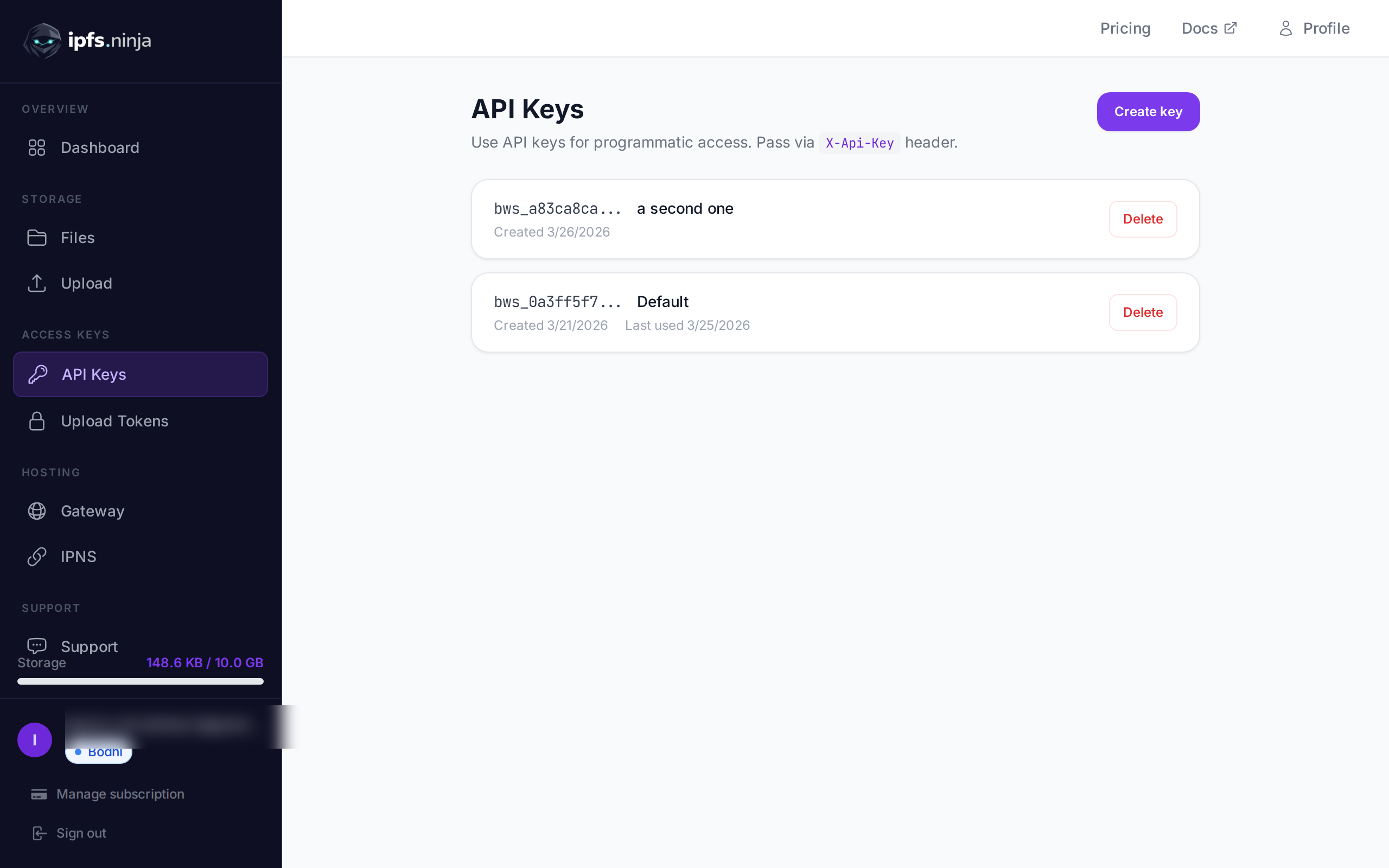
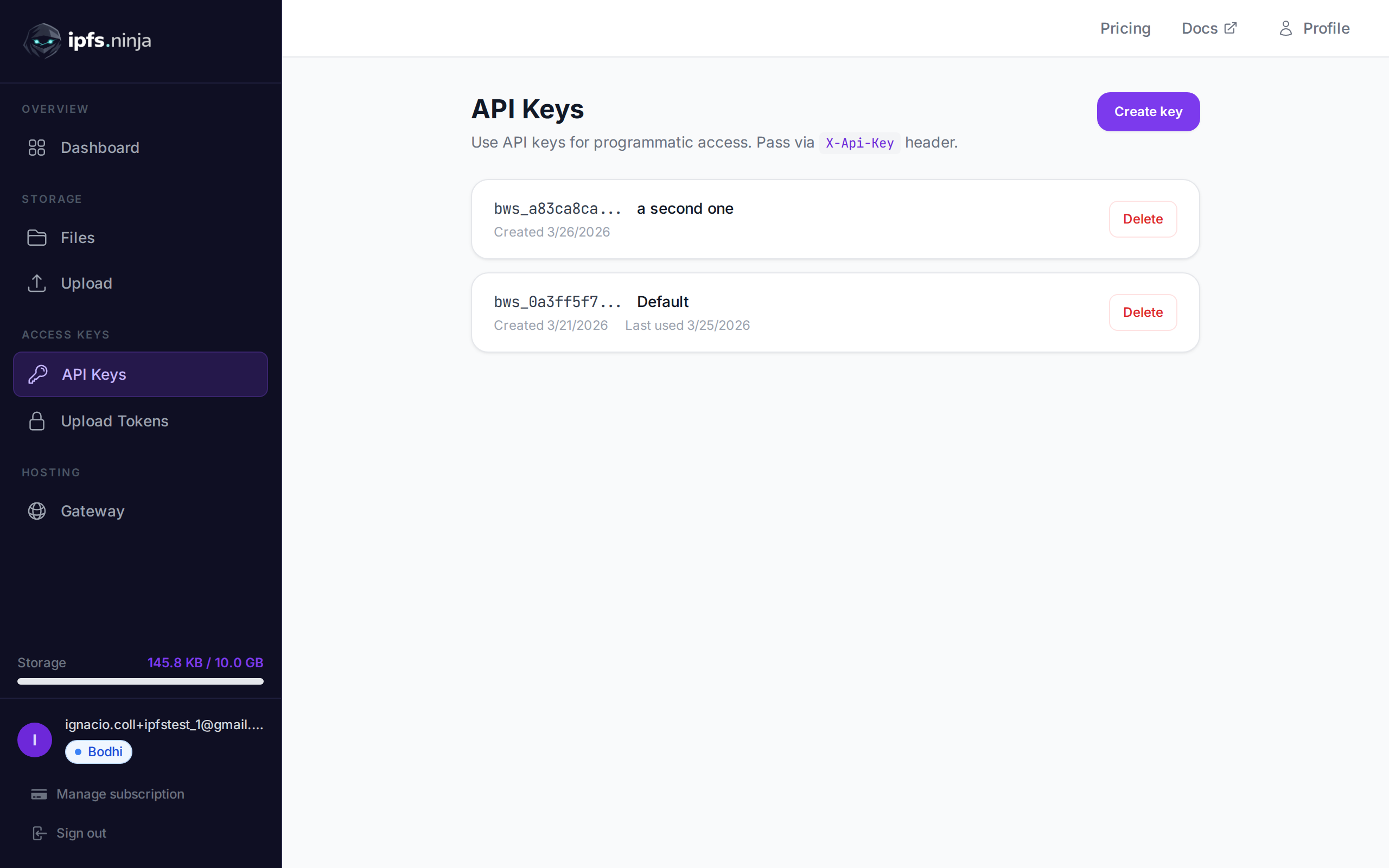
1. Setup — Registrieren und API-Schlüssel erhalten#
- Registriere dich für ein kostenloses Konto (keine Kreditkarte erforderlich).
- Gehe zu API Keys in der Dashboard-Seitenleiste.
- Klicke auf Create key, gib ihm einen Namen und kopiere den Schlüssel sofort — er wird nicht wieder angezeigt.
Dein Schlüssel sieht aus wie bws_a1b2c3d4e5f6a7b8c9d0e1f2a3b4c5d6. Jedes Beispiel unten sendet ihn im X-Api-Key-Header.
2. JSON auf IPFS hochladen#
Der einfachste Upload: Übergebe ein einfaches JavaScript-Objekt als content und die API serialisiert es, pinnt es auf IPFS und gibt die CID zurück.
// upload-json.mjs
const API = "https://api.ipfs.ninja";
const API_KEY = "bws_your_key_here";

const payload = {
  content: {
    name: "Galactic Badge #42",
    description: "Proof of attendance — Galactic Meetup 2026",
    attributes: [
      { trait_type: "Event", value: "Galactic Meetup" },
      { trait_type: "Year", value: 2026 }
    ]
  }
};

const res = await fetch(`${API}/upload/new`, {
  method: "POST",
  headers: {
    "Content-Type": "application/json",
    "X-Api-Key": API_KEY
  },
  body: JSON.stringify(payload)
});

const data = await res.json();
console.log("CID :", data.cid);
console.log("Size:", data.sizeMB, "MB");
console.log("IPFS:", data.uris.ipfs);
console.log("URL :", data.uris.url);
Mit node upload-json.mjs ausführen. Eine erfolgreiche Antwort sieht so aus:
{
  "cid": "bafkreigx7gq...",
  "sizeMB": 0.0004,
  "uris": {
    "ipfs": "ipfs://bafkreigx7gq...",
    "url": "https://ipfs.ninja/ipfs/bafkreigx7gq..."
  }
}
Das url-Feld verweist auf ein öffentliches HTTP-Gateway, sodass der Inhalt sofort in jedem Browser zugänglich ist.
3. Ein Bild hochladen#
Binärdateien (Bilder, PDFs, Audio) werden als base64-codierte Strings im content-Feld gesendet.
// upload-image.mjs
import { readFileSync } from "node:fs";

const API = "https://api.ipfs.ninja";
const API_KEY = "bws_your_key_here";

const imageBuffer = readFileSync("./photo.png");
const base64 = imageBuffer.toString("base64");

const res = await fetch(`${API}/upload/new`, {
  method: "POST",
  headers: {
    "Content-Type": "application/json",
    "X-Api-Key": API_KEY
  },
  body: JSON.stringify({ content: base64 })
});

const data = await res.json();
console.log("Image CID:", data.cid);
console.log("Gateway  :", data.uris.url);
Die API erkennt den MIME-Typ automatisch — PNG, JPEG, WebP, GIF und PDF werden alle unterstützt. Keine zusätzlichen Header oder Content-Type-Overrides erforderlich.
Mit curl sieht die gleiche Operation so aus:
BASE64=$(base64 -w 0 photo.png)

curl -X POST https://api.ipfs.ninja/upload/new \
  -H "Content-Type: application/json" \
  -H "X-Api-Key: bws_your_key_here" \
  -d "{\"content\": \"$BASE64\"}"
4. Upload mit Metadaten#
Jeder Upload akzeptiert zwei optionale Felder: description (frei wählbares Text-Label) und metadata (beliebige Schlüssel-Wert-Paare). Beide werden neben der CID gespeichert und zurückgegeben, wenn du die Datei später auflistest oder abrufst.
// upload-with-metadata.mjs
const API = "https://api.ipfs.ninja";
const API_KEY = "bws_your_key_here";

const res = await fetch(`${API}/upload/new`, {
  method: "POST",
  headers: {
    "Content-Type": "application/json",
    "X-Api-Key": API_KEY
  },
  body: JSON.stringify({
    content: { title: "Meeting Notes", body: "Q1 roadmap recap..." },
    description: "Q1 2026 planning meeting notes",
    metadata: {
      project: "acme-app",
      author: "dana",
      version: "1"
    }
  })
});

const data = await res.json();
console.log("CID:", data.cid);
Metadaten machen es einfach, Dateien auf deiner Seite zu filtern und zu organisieren, ohne den IPFS-Inhalt selbst zu parsen.
5. Eine existierende CID pinnen#
Wenn du bereits Inhalte auf IPFS hast und sicherstellen möchtest, dass sie verfügbar bleiben, pinne sie per CID:
// pin-cid.mjs
const API = "https://api.ipfs.ninja";
const API_KEY = "bws_your_key_here";

const res = await fetch(`${API}/pin`, {
  method: "POST",
  headers: {
    "Content-Type": "application/json",
    "X-Api-Key": API_KEY
  },
  body: JSON.stringify({
    cid: "bafkreigx7gq...",
    description: "Pinned from external source"
  })
});

const data = await res.json();
console.log("Pinned:", data.cid);
6. Deine Dateien auflisten#
Rufe jede Datei ab, die du innerhalb eines Zeitfensters hochgeladen hast. Die Query-Parameter from und to sind Unix-Timestamps in Millisekunden.
// list-files.mjs
const API = "https://api.ipfs.ninja";
const API_KEY = "bws_your_key_here";

const now = Date.now();
const oneWeekAgo = now - 7 * 24 * 60 * 60 * 1000;

const url = `${API}/upload/list?from=${oneWeekAgo}&to=${now}`;

const res = await fetch(url, {
  headers: { "X-Api-Key": API_KEY }
});

const files = await res.json();

for (const file of files) {
  console.log(`${file.cid}  ${file.description ?? "(no description)"}`);
}
Mit curl:
FROM=$(($(date +%s) * 1000 - 604800000))
TO=$(($(date +%s) * 1000))

curl -s "https://api.ipfs.ninja/upload/list?from=$FROM&to=$TO" \
  -H "X-Api-Key: bws_your_key_here" | jq .
7. Datei-Details abrufen#
Rufe den vollständigen Datensatz für eine einzelne CID ab, einschließlich Metadaten, Größe und Zeitstempel:
// get-file.mjs
const API = "https://api.ipfs.ninja";
const API_KEY = "bws_your_key_here";
const CID = "bafkreigx7gq...";

const res = await fetch(`${API}/file/${CID}`, {
  headers: { "X-Api-Key": API_KEY }
});

const details = await res.json();
console.log(JSON.stringify(details, null, 2));
8. Client-seitige Uploads mit signierten Tokens#
Das Einbetten eines API-Schlüssels in ein Browser-Bundle ist ein Sicherheitsrisiko. Generiere stattdessen ein kurzlebiges signiertes Token auf deinem Server und übergebe es an den Client. Für Browser- und mobile Apps, bei denen das Einbetten eines API-Schlüssels ein Sicherheitsrisiko darstellt, sieh dir an, wie IPFS Upload-Tokens sichere clientseitige Uploads ermöglichen. Für eine vollständige React-Komponente mit Drag-and-Drop und TanStack Query, siehe unser React-IPFS-Upload-Tutorial.
Server (Express)#
// server.mjs
import express from "express";

const app = express();
const API = "https://api.ipfs.ninja";
const API_KEY = process.env.IPFS_API_KEY;

app.post("/api/upload-token", async (req, res) => {
  const response = await fetch(`${API}/upload/signed-url`, {
    method: "POST",
    headers: {
      "Content-Type": "application/json",
      "X-Api-Key": API_KEY
    },
    body: JSON.stringify({
      name: "browser-upload",
      expiresIn: 600          // token valid for 10 minutes
    })
  });

  const { token, tokenId, expiresAt } = await response.json();
  res.json({ token, tokenId, expiresAt });
});

app.listen(3000, () => console.log("Server running on :3000"));Browser-Client#
<!-- upload.html -->
<input type="file" id="filePicker" />
<button id="uploadBtn">Upload to IPFS</button>
<pre id="result"></pre>

<script>
  const API = "https://api.ipfs.ninja";

  document.getElementById("uploadBtn").addEventListener("click", async () => {
    // 1. Get a signed token from your own backend
    const tokenRes = await fetch("/api/upload-token", { method: "POST" });
    const { token } = await tokenRes.json();

    // 2. Read the selected file as base64
    const file = document.getElementById("filePicker").files[0];
    if (!file) return alert("Pick a file first");

    const base64 = await new Promise((resolve) => {
      const reader = new FileReader();
      reader.onload = () => resolve(reader.result.split(",")[1]);
      reader.readAsDataURL(file);
    });

    // 3. Upload directly to IPFS using the signed token
    const uploadRes = await fetch(`${API}/upload/new`, {
      method: "POST",
      headers: {
        "Content-Type": "application/json",
        "Authorization": `Signed ${token}`
      },
      body: JSON.stringify({
        content: base64,
        description: file.name
      })
    });

    const data = await uploadRes.json();
    document.getElementById("result").textContent = JSON.stringify(data, null, 2);
  });
</script>
Der Browser sieht deinen API-Schlüssel nie. Das signierte Token läuft automatisch ab. Tokens sind mehrfach verwendbar — sie können mehrmals verwendet werden, bis sie ablaufen oder widerrufen werden. Der useCount wird verfolgt, aber nicht als Grenze durchgesetzt.
9. Fehlerbehandlung#
Die API verwendet konventionelle HTTP-Statuscodes. Hier sind die, die du explizit behandeln solltest:
| Status | Bedeutung | Was zu tun ist |
|---|---|---|
| 400 | Bad Request — fehlende oder ungültige Felder | Überprüfe, ob content vorhanden und gültig ist |
| 401 | Unauthorized — falscher oder fehlender API-Schlüssel | Überprüfe den X-Api-Key-Header |
| 413 | Payload zu groß | Reduziere Dateigröße oder teile Inhalt |
| 429 | Rate-limit überschritten | Pause und Wiederholung mit exponentieller Verzögerung |
| 500 | Server-Fehler | Wiederholung nach kurzer Verzögerung |
Eine widerstandsfähige Upload-Funktion mit exponentiellem Backoff:
// resilient-upload.mjs
const API = "https://api.ipfs.ninja";
const API_KEY = "bws_your_key_here";

async function uploadWithRetry(content, retries = 3) {
  for (let attempt = 1; attempt <= retries; attempt++) {
    const res = await fetch(`${API}/upload/new`, {
      method: "POST",
      headers: {
        "Content-Type": "application/json",
        "X-Api-Key": API_KEY
      },
      body: JSON.stringify({ content })
    });

    if (res.ok) return await res.json();

    const body = await res.text();

    if (res.status === 401) {
      throw new Error(`Authentication failed: ${body}`);
    }

    if (res.status === 413) {
      throw new Error(`Payload too large — reduce file size. ${body}`);
    }

    if (res.status === 429 || res.status >= 500) {
      const delay = Math.pow(2, attempt) * 1000;    // 2s, 4s, 8s
      console.warn(`Attempt ${attempt} failed (${res.status}). Retrying in ${delay}ms...`);
      await new Promise((r) => setTimeout(r, delay));
      continue;
    }

    throw new Error(`Upload failed (${res.status}): ${body}`);
  }

  throw new Error("Upload failed after all retries");
}

// Usage
const data = await uploadWithRetry({ hello: "world" });
console.log("CID:", data.cid);
10. Vollständiges Arbeitsbeispiel#
Ein einzelnes Skript, das jeden in diesem Tutorial behandelten Endpunkt nutzt. Speichere es als ipfs-demo.mjs und führe es mit node ipfs-demo.mjs aus.
// ipfs-demo.mjs
import { readFileSync } from "node:fs";

const API = "https://api.ipfs.ninja";
const API_KEY = "bws_your_key_here";

const headers = {
  "Content-Type": "application/json",
  "X-Api-Key": API_KEY
};

async function request(method, path, body) {
  const opts = { method, headers };
  if (body) opts.body = JSON.stringify(body);
  const res = await fetch(`${API}${path}`, opts);
  if (!res.ok) throw new Error(`${method} ${path} → ${res.status}: ${await res.text()}`);
  return res.json();
}

// --- 1. Upload JSON ---
console.log("--- Upload JSON ---");
const jsonResult = await request("POST", "/upload/new", {
  content: { name: "Demo Token", edition: 1 },
  description: "Tutorial demo — JSON upload",
  metadata: { tutorial: "true" }
});
console.log("CID:", jsonResult.cid);
console.log("URL:", jsonResult.uris.url);

// --- 2. Upload an image (if photo.png exists) ---
try {
  const img = readFileSync("./photo.png");
  console.log("\n--- Upload Image ---");
  const imgResult = await request("POST", "/upload/new", {
    content: img.toString("base64"),
    description: "Tutorial demo — image upload"
  });
  console.log("CID:", imgResult.cid);
  console.log("URL:", imgResult.uris.url);
} catch {
  console.log("\n--- Skipping image upload (no photo.png found) ---");
}

// --- 3. Pin the JSON CID ---
console.log("\n--- Pin CID ---");
const pinResult = await request("POST", "/pin", {
  cid: jsonResult.cid,
  description: "Pinned from tutorial"
});
console.log("Pinned:", pinResult.cid);

// --- 4. Get file details ---
console.log("\n--- File Details ---");
const details = await request("GET", `/file/${jsonResult.cid}`);
console.log(JSON.stringify(details, null, 2));

// --- 5. List recent files ---
console.log("\n--- Recent Files ---");
const now = Date.now();
const oneHourAgo = now - 60 * 60 * 1000;
const files = await request("GET", `/upload/list?from=${oneHourAgo}&to=${now}`);
console.log(`Found ${files.length} file(s) in the last hour`);
for (const f of files) {
  console.log(` - ${f.cid}  ${f.description ?? ""}`);
}

// --- 6. Create a signed upload token ---
console.log("\n--- Signed Token ---");
const tokenResult = await request("POST", "/upload/signed-url", {
  name: "demo-token",
  expiresIn: 300
});
console.log("Token ID :", tokenResult.tokenId);
console.log("Expires  :", new Date(tokenResult.expiresAt).toISOString());

// --- 7. Upload using the signed token ---
console.log("\n--- Upload with Signed Token ---");
const signedRes = await fetch(`${API}/upload/new`, {
  method: "POST",
  headers: {
    "Content-Type": "application/json",
    "Authorization": `Signed ${tokenResult.token}`
  },
  body: JSON.stringify({
    content: { note: "Uploaded with a signed token" }
  })
});
const signedData = await signedRes.json();
console.log("CID:", signedData.cid);

console.log("\nDone.");
Ersetze bws_your_key_here durch einen echten Schlüssel und führe das Skript aus. Jeder Schritt gibt sein Ergebnis aus, sodass du mitverfolgen kannst. Mit denselben API-Aufrufen kannst du ein vollständiges Frontend auf IPFS hosten.
11. Nächste Schritte#
Du weißt jetzt, wie du Dateien über die IPFS Upload API hochlädst, pinnst, auflistest und abrufst und wie du Browser-Uploads mit signierten Tokens sicher hältst. Für einen breiteren Überblick einschließlich der Dashboard-UI und Python-Beispiele siehe How to Upload Files to IPFS. Hier ist, wohin du von hier aus gehen kannst:
- API-Referenz — Vollständige Endpunkt-Dokumentation unter ipfs.ninja/docs.
- Custom Gateways — Bediene IPFS-Inhalte von deiner eigenen Domain. Siehe den Gateway-Setup-Guide.
- Analytics — Verfolge Upload-Volumen, Bandbreite und Pin-Anzahl im Dashboard.
- HTTP-Client — Kein SDK erforderlich. Du kannst Standard-
fetch()oder einen beliebigen HTTP-Client verwenden, um mit der API zu interagieren.
Wenn du auf Probleme stößt, öffne ein Ticket bei support.ipfs.ninja oder tritt der Community auf Discord bei.
Eine vollständige Anleitung zur NFT-Metadatenstruktur und ERC-721-tokenURI-Mustern finden Sie in unserem Leitfaden zur NFT-Metadaten-Speicherung.
Für eine vollständige Anleitung mit Pythons requests-Bibliothek, siehe IPFS-Dateien mit Python hochladen.
Über den Autor
Nacho Coll
Founder & Engineer at IPFS.NINJA
Nacho founded IPFS.NINJA to make content-addressed storage feel as simple as an S3 PUT — a single API call, a permanent CID, no wallets or peer discovery to reason about. Writes about IPFS internals, decentralized storage patterns, and the pinning-service landscape from the operator side of the wire.