
IPFS Upload API — 完整開發者教學
學習透過 REST API 上傳檔案至 IPFS。JavaScript、Node.js 和 curl 的完整程式碼範例。上傳 JSON、圖片,使用簽署的權杖進行客戶端上傳。
上傳檔案到 IPFS 應該和送出一個 POST 請求一樣簡單。在這個教學中,你將會做到這一點——只需 fetch() 和一個 API 金鑰,就能將 JSON 文件、圖片和 PDF 上傳到 IPFS。完成後,你將擁有一個完整的 Node.js 腳本,可以上傳內容、列出檔案、擷取中繼資料,並產生簽署的權杖供安全的客戶端上傳使用。剛接觸 IPFS?先從 什麼是 IPFS Pinning? 開始,在深入程式碼之前理解基礎概念。
你將會建構的內容#
- 將 JSON 物件上傳到 IPFS 並取回內容識別碼 (CID)。
- 從磁碟上傳二進位圖片。
- 為上傳附加描述和自訂中繼資料。
- 依日期範圍查詢你的上傳歷史。
- 擷取特定檔案的詳細資料。
- 建立有時間限制的簽署權杖,讓瀏覽器可以直接上傳而不暴露 API 金鑰。
- 處理錯誤並實作重試邏輯。
所有操作都運行於同一個基本 URL: https://api.ipfs.ninja
1. 設定 — 註冊並取得 API 金鑰#
- 為免費帳號 註冊(無需信用卡)。
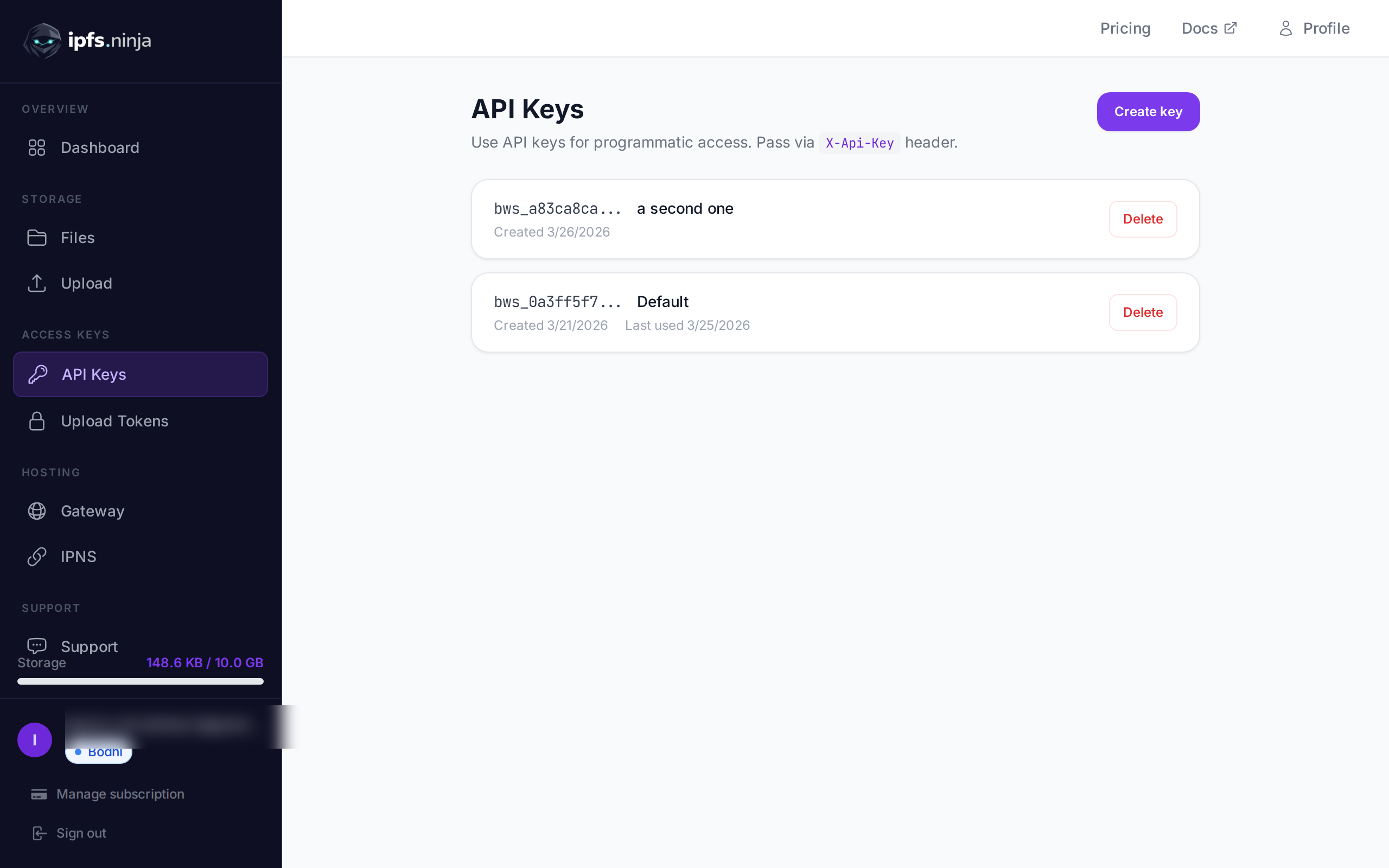
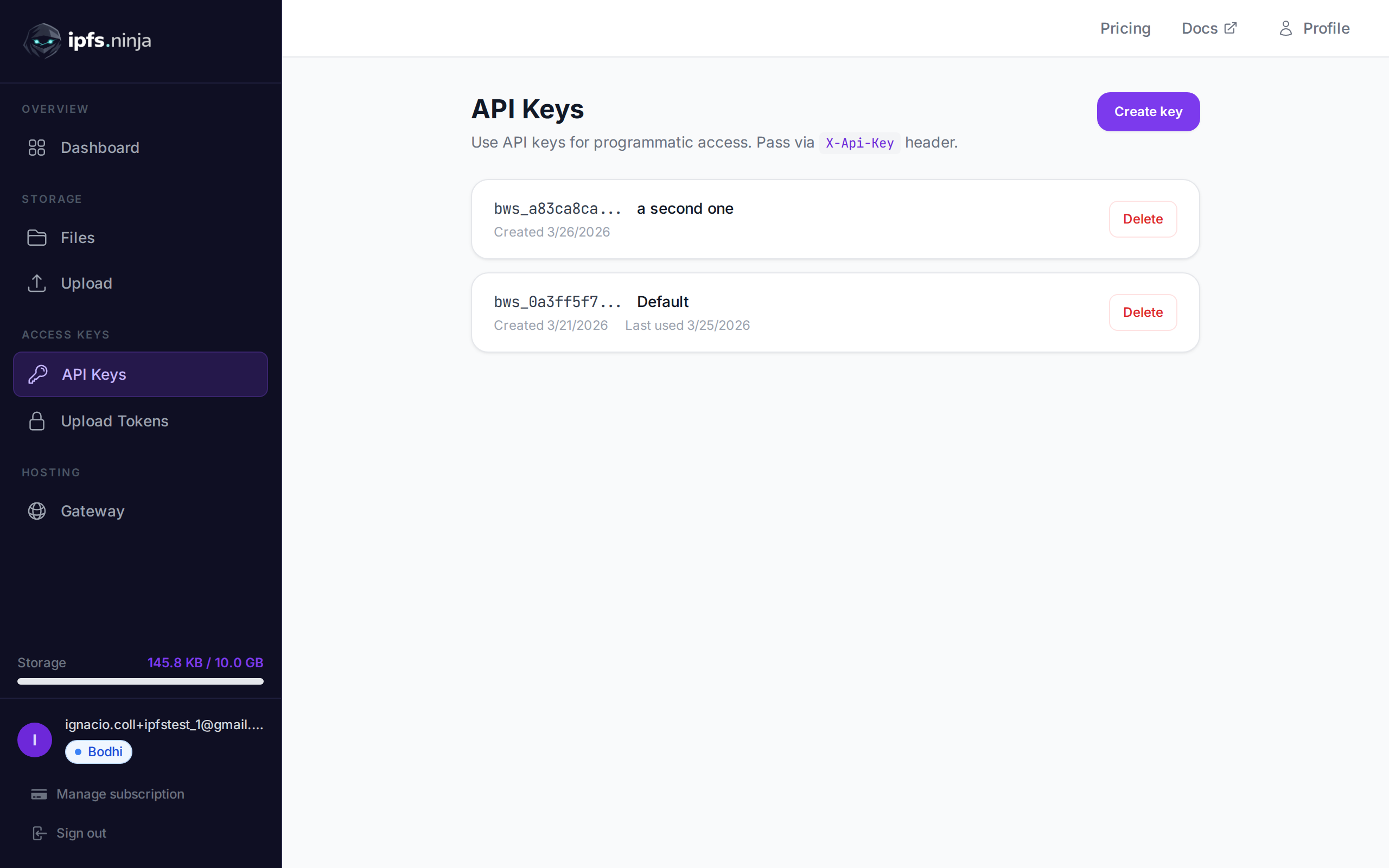
- 在儀表板側邊欄前往 API Keys。
- 點擊 Create key,為它命名,然後立刻複製金鑰——它不會再次顯示。
你的金鑰看起來像 bws_a1b2c3d4e5f6a7b8c9d0e1f2a3b4c5d6。下面每個範例都將它放在 X-Api-Key 標頭中傳送。
2. 上傳 JSON 到 IPFS#
最簡單的上傳:把一個普通的 JavaScript 物件當作 content 傳遞,API 會把它序列化、釘選到 IPFS,並回傳 CID。
// upload-json.mjs
const API = "https://api.ipfs.ninja";
const API_KEY = "bws_your_key_here";

const payload = {
  content: {
    name: "Galactic Badge #42",
    description: "Proof of attendance — Galactic Meetup 2026",
    attributes: [
      { trait_type: "Event", value: "Galactic Meetup" },
      { trait_type: "Year", value: 2026 }
    ]
  }
};

const res = await fetch(`${API}/upload/new`, {
  method: "POST",
  headers: {
    "Content-Type": "application/json",
    "X-Api-Key": API_KEY
  },
  body: JSON.stringify(payload)
});

const data = await res.json();
console.log("CID :", data.cid);
console.log("Size:", data.sizeMB, "MB");
console.log("IPFS:", data.uris.ipfs);
console.log("URL :", data.uris.url);
使用 node upload-json.mjs 執行。成功的回應看起來像這樣:
{
  "cid": "bafkreigx7gq...",
  "sizeMB": 0.0004,
  "uris": {
    "ipfs": "ipfs://bafkreigx7gq...",
    "url": "https://ipfs.ninja/ipfs/bafkreigx7gq..."
  }
}
url 欄位指向一個公開的 HTTP 閘道,因此內容可立即在任何瀏覽器中存取。
3. 上傳圖片#
二進位檔案(圖片、PDF、音訊)以 base64 編碼字串 的形式放在 content 欄位中傳送。
// upload-image.mjs
import { readFileSync } from "node:fs";

const API = "https://api.ipfs.ninja";
const API_KEY = "bws_your_key_here";

const imageBuffer = readFileSync("./photo.png");
const base64 = imageBuffer.toString("base64");

const res = await fetch(`${API}/upload/new`, {
  method: "POST",
  headers: {
    "Content-Type": "application/json",
    "X-Api-Key": API_KEY
  },
  body: JSON.stringify({ content: base64 })
});

const data = await res.json();
console.log("Image CID:", data.cid);
console.log("Gateway  :", data.uris.url);
API 會自動偵測 MIME 類型——PNG、JPEG、WebP、GIF 和 PDF 皆有支援。無需額外標頭或覆寫 content-type。
使用 curl 的話,相同操作如下:
BASE64=$(base64 -w 0 photo.png)

curl -X POST https://api.ipfs.ninja/upload/new \
  -H "Content-Type: application/json" \
  -H "X-Api-Key: bws_your_key_here" \
  -d "{\"content\": \"$BASE64\"}"
4. 帶中繼資料的上傳#
每次上傳接受兩個選用欄位:description(自由文字標籤)與 metadata(任意鍵值對)。兩者都會與 CID 一起儲存,並在之後列出或擷取檔案時回傳。
// upload-with-metadata.mjs
const API = "https://api.ipfs.ninja";
const API_KEY = "bws_your_key_here";

const res = await fetch(`${API}/upload/new`, {
  method: "POST",
  headers: {
    "Content-Type": "application/json",
    "X-Api-Key": API_KEY
  },
  body: JSON.stringify({
    content: { title: "Meeting Notes", body: "Q1 roadmap recap..." },
    description: "Q1 2026 planning meeting notes",
    metadata: {
      project: "acme-app",
      author: "dana",
      version: "1"
    }
  })
});

const data = await res.json();
console.log("CID:", data.cid);
中繼資料讓你在自己這邊輕鬆過濾和組織檔案,而不需要解析 IPFS 內容本身。
5. 釘選現有的 CID#
若你已經在 IPFS 上有內容,並想確保它持續可用,依 CID 釘選即可:
// pin-cid.mjs
const API = "https://api.ipfs.ninja";
const API_KEY = "bws_your_key_here";

const res = await fetch(`${API}/pin`, {
  method: "POST",
  headers: {
    "Content-Type": "application/json",
    "X-Api-Key": API_KEY
  },
  body: JSON.stringify({
    cid: "bafkreigx7gq...",
    description: "Pinned from external source"
  })
});

const data = await res.json();
console.log("Pinned:", data.cid);
6. 列出你的檔案#
擷取你在某個時間範圍內上傳的所有檔案。查詢參數 from 與 to 是 以毫秒為單位的 Unix 時間戳。
// list-files.mjs
const API = "https://api.ipfs.ninja";
const API_KEY = "bws_your_key_here";

const now = Date.now();
const oneWeekAgo = now - 7 * 24 * 60 * 60 * 1000;

const url = `${API}/upload/list?from=${oneWeekAgo}&to=${now}`;

const res = await fetch(url, {
  headers: { "X-Api-Key": API_KEY }
});

const files = await res.json();

for (const file of files) {
  console.log(`${file.cid}  ${file.description ?? "(no description)"}`);
}
使用 curl:
FROM=$(($(date +%s) * 1000 - 604800000))
TO=$(($(date +%s) * 1000))

curl -s "https://api.ipfs.ninja/upload/list?from=$FROM&to=$TO" \
  -H "X-Api-Key: bws_your_key_here" | jq .
7. 取得檔案詳細資料#
擷取單一 CID 的完整紀錄,包含中繼資料、大小與時間戳:
// get-file.mjs
const API = "https://api.ipfs.ninja";
const API_KEY = "bws_your_key_here";
const CID = "bafkreigx7gq...";

const res = await fetch(`${API}/file/${CID}`, {
  headers: { "X-Api-Key": API_KEY }
});

const details = await res.json();
console.log(JSON.stringify(details, null, 2));
8. 使用簽署權杖的客戶端上傳#
把 API 金鑰嵌入瀏覽器封包是一個安全風險。改為在你的伺服器產生一個短效的 簽署權杖 並傳給客戶端。
伺服器 (Express)#
// server.mjs
import express from "express";

const app = express();
const API = "https://api.ipfs.ninja";
const API_KEY = process.env.IPFS_API_KEY;

app.post("/api/upload-token", async (req, res) => {
  const response = await fetch(`${API}/upload/signed-url`, {
    method: "POST",
    headers: {
      "Content-Type": "application/json",
      "X-Api-Key": API_KEY
    },
    body: JSON.stringify({
      name: "browser-upload",
      expiresIn: 600          // token valid for 10 minutes
    })
  });

  const { token, tokenId, expiresAt } = await response.json();
  res.json({ token, tokenId, expiresAt });
});

app.listen(3000, () => console.log("Server running on :3000"));瀏覽器客戶端#
<!-- upload.html -->
<input type="file" id="filePicker" />
<button id="uploadBtn">Upload to IPFS</button>
<pre id="result"></pre>

<script>
  const API = "https://api.ipfs.ninja";

  document.getElementById("uploadBtn").addEventListener("click", async () => {
    // 1. Get a signed token from your own backend
    const tokenRes = await fetch("/api/upload-token", { method: "POST" });
    const { token } = await tokenRes.json();

    // 2. Read the selected file as base64
    const file = document.getElementById("filePicker").files[0];
    if (!file) return alert("Pick a file first");

    const base64 = await new Promise((resolve) => {
      const reader = new FileReader();
      reader.onload = () => resolve(reader.result.split(",")[1]);
      reader.readAsDataURL(file);
    });

    // 3. Upload directly to IPFS using the signed token
    const uploadRes = await fetch(`${API}/upload/new`, {
      method: "POST",
      headers: {
        "Content-Type": "application/json",
        "Authorization": `Signed ${token}`
      },
      body: JSON.stringify({
        content: base64,
        description: file.name
      })
    });

    const data = await uploadRes.json();
    document.getElementById("result").textContent = JSON.stringify(data, null, 2);
  });
</script>
瀏覽器永遠看不到你的 API 金鑰。簽署權杖會自動失效。權杖可重複使用——可以使用多次直到過期或被撤銷。useCount 會被追蹤,但不會作為上限強制執行。
9. 錯誤處理#
API 使用慣例的 HTTP 狀態碼。以下是你應該明確處理的:
| 狀態 | 意義 | 該怎麼做 |
|---|---|---|
| 400 | Bad request — 欄位遺漏或無效 | 確認 content 存在且有效 |
| 401 | Unauthorized — API 金鑰錯誤或遺漏 | 驗證 X-Api-Key 標頭 |
| 413 | Payload too large | 減少檔案大小或拆分內容 |
| 429 | Rate limited | 退避後以指數延遲重試 |
| 500 | Server error | 稍待片刻後重試 |
具備指數退避的彈性上傳函式:
// resilient-upload.mjs
const API = "https://api.ipfs.ninja";
const API_KEY = "bws_your_key_here";

async function uploadWithRetry(content, retries = 3) {
  for (let attempt = 1; attempt <= retries; attempt++) {
    const res = await fetch(`${API}/upload/new`, {
      method: "POST",
      headers: {
        "Content-Type": "application/json",
        "X-Api-Key": API_KEY
      },
      body: JSON.stringify({ content })
    });

    if (res.ok) return await res.json();

    const body = await res.text();

    if (res.status === 401) {
      throw new Error(`Authentication failed: ${body}`);
    }

    if (res.status === 413) {
      throw new Error(`Payload too large — reduce file size. ${body}`);
    }

    if (res.status === 429 || res.status >= 500) {
      const delay = Math.pow(2, attempt) * 1000;    // 2s, 4s, 8s
      console.warn(`Attempt ${attempt} failed (${res.status}). Retrying in ${delay}ms...`);
      await new Promise((r) => setTimeout(r, delay));
      continue;
    }

    throw new Error(`Upload failed (${res.status}): ${body}`);
  }

  throw new Error("Upload failed after all retries");
}

// Usage
const data = await uploadWithRetry({ hello: "world" });
console.log("CID:", data.cid);
10. 完整可運行範例#
一支腳本演練本教學中涵蓋的每個端點。將其儲存為 ipfs-demo.mjs,然後以 node ipfs-demo.mjs 執行。
// ipfs-demo.mjs
import { readFileSync } from "node:fs";

const API = "https://api.ipfs.ninja";
const API_KEY = "bws_your_key_here";

const headers = {
  "Content-Type": "application/json",
  "X-Api-Key": API_KEY
};

async function request(method, path, body) {
  const opts = { method, headers };
  if (body) opts.body = JSON.stringify(body);
  const res = await fetch(`${API}${path}`, opts);
  if (!res.ok) throw new Error(`${method} ${path} → ${res.status}: ${await res.text()}`);
  return res.json();
}

// --- 1. Upload JSON ---
console.log("--- Upload JSON ---");
const jsonResult = await request("POST", "/upload/new", {
  content: { name: "Demo Token", edition: 1 },
  description: "Tutorial demo — JSON upload",
  metadata: { tutorial: "true" }
});
console.log("CID:", jsonResult.cid);
console.log("URL:", jsonResult.uris.url);

// --- 2. Upload an image (if photo.png exists) ---
try {
  const img = readFileSync("./photo.png");
  console.log("\n--- Upload Image ---");
  const imgResult = await request("POST", "/upload/new", {
    content: img.toString("base64"),
    description: "Tutorial demo — image upload"
  });
  console.log("CID:", imgResult.cid);
  console.log("URL:", imgResult.uris.url);
} catch {
  console.log("\n--- Skipping image upload (no photo.png found) ---");
}

// --- 3. Pin the JSON CID ---
console.log("\n--- Pin CID ---");
const pinResult = await request("POST", "/pin", {
  cid: jsonResult.cid,
  description: "Pinned from tutorial"
});
console.log("Pinned:", pinResult.cid);

// --- 4. Get file details ---
console.log("\n--- File Details ---");
const details = await request("GET", `/file/${jsonResult.cid}`);
console.log(JSON.stringify(details, null, 2));

// --- 5. List recent files ---
console.log("\n--- Recent Files ---");
const now = Date.now();
const oneHourAgo = now - 60 * 60 * 1000;
const files = await request("GET", `/upload/list?from=${oneHourAgo}&to=${now}`);
console.log(`Found ${files.length} file(s) in the last hour`);
for (const f of files) {
  console.log(` - ${f.cid}  ${f.description ?? ""}`);
}

// --- 6. Create a signed upload token ---
console.log("\n--- Signed Token ---");
const tokenResult = await request("POST", "/upload/signed-url", {
  name: "demo-token",
  expiresIn: 300
});
console.log("Token ID :", tokenResult.tokenId);
console.log("Expires  :", new Date(tokenResult.expiresAt).toISOString());

// --- 7. Upload using the signed token ---
console.log("\n--- Upload with Signed Token ---");
const signedRes = await fetch(`${API}/upload/new`, {
  method: "POST",
  headers: {
    "Content-Type": "application/json",
    "Authorization": `Signed ${tokenResult.token}`
  },
  body: JSON.stringify({
    content: { note: "Uploaded with a signed token" }
  })
});
const signedData = await signedRes.json();
console.log("CID:", signedData.cid);

console.log("\nDone.");
將 bws_your_key_here 替換成真實的金鑰並執行腳本。每個步驟都會輸出結果,讓你可以跟著進行。
11. 下一步#
你現在已經知道如何透過 IPFS Upload API 上傳、釘選、列出和擷取檔案,以及如何用簽署權杖保護瀏覽器上傳。如需更廣泛的概覽,包括儀表板 UI 和 Python 範例,請參閱 如何上傳檔案到 IPFS。接下來可以往這些方向繼續:
- API Reference — 完整端點文件位於 ipfs.ninja/docs。
- 效能 — 檔案上傳後,閱讀 IPFS 效能優化 了解如何減少 gateway 延遲。
- 自訂閘道 — 從你自己的網域提供 IPFS 內容。請參閱 閘道設定指南。
- 分析 — 在 儀表板 追蹤上傳量、頻寬與釘選數。
- HTTP 客戶端 — 不需要 SDK。你可以使用標準
fetch()或任何 HTTP 客戶端與 API 互動。
如果遇到問題,請在 support.ipfs.ninja 開立票證或加入 Discord 社群。
為了提升安全性,請參閱 IPFS 上傳令牌。
有關 NFT 元數據結構和 ERC-721 tokenURI 模式的完整演練,請參閱我們的 NFT 元數據存儲指南。

關於作者
Nacho Coll
Founder & Engineer at IPFS.NINJA
Nacho founded IPFS.NINJA to make content-addressed storage feel as simple as an S3 PUT — a single API call, a permanent CID, no wallets or peer discovery to reason about. Writes about IPFS internals, decentralized storage patterns, and the pinning-service landscape from the operator side of the wire.